 CleanEase
Your folders, measured
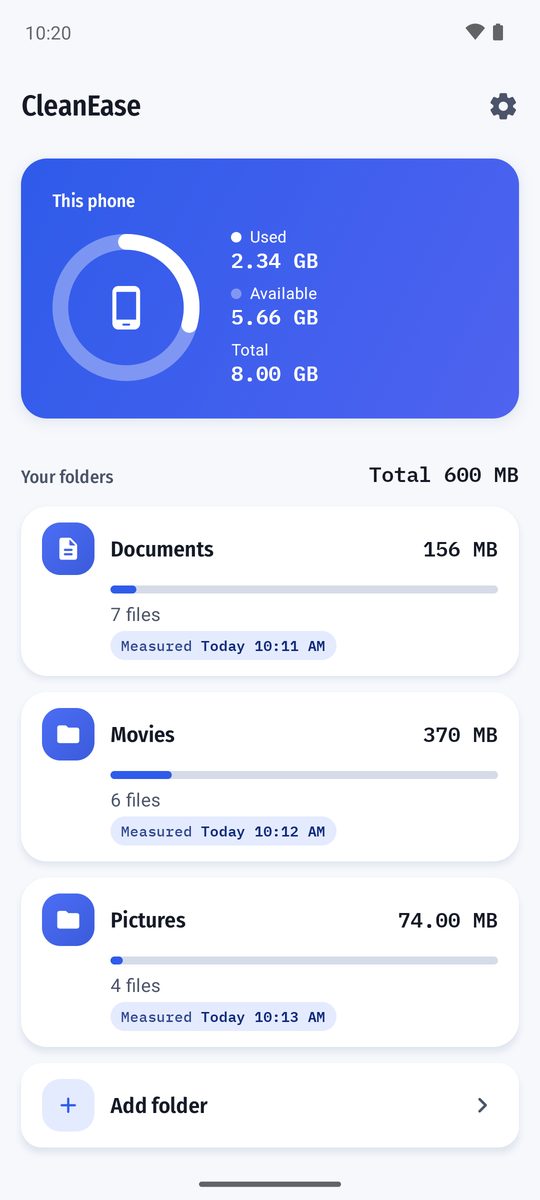
Add folders with Android's folder picker. Each row shows its size, file count and when it was measured. Growth over the last 7 days appears once there is a week of history.
Folder cleaner for Android
CleanEase finds large, old and duplicate files in the folders you pick. Deleted files go to a trash first, so you can restore them within 30 days.
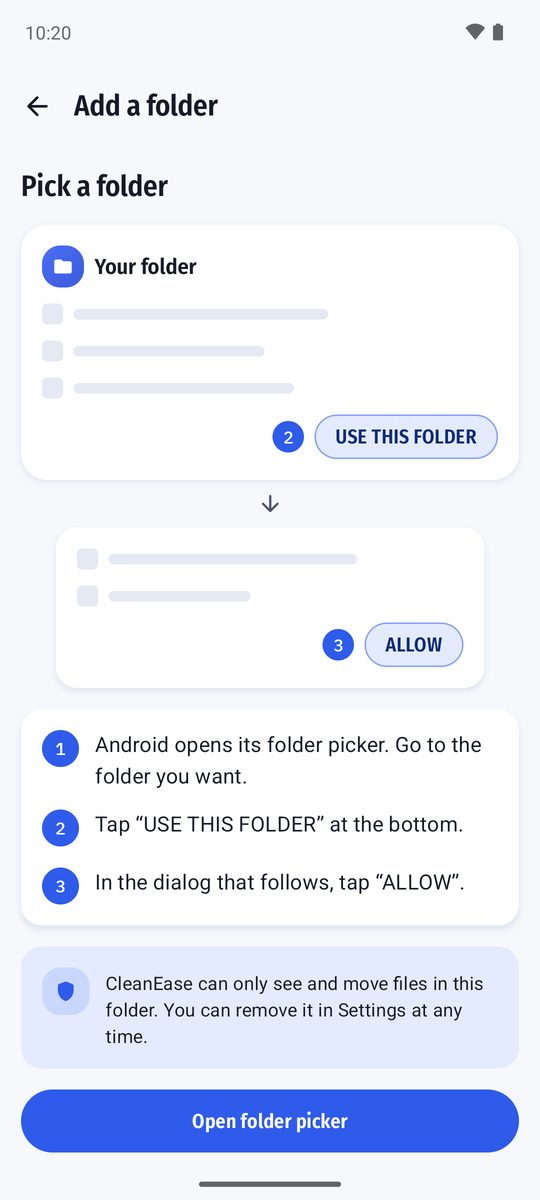
You choose each folder with Android's own folder picker, and CleanEase opens only those.
Three steps, and you stay in control of each one.
Tap Add a folder. Android's own picker opens; choose a folder and tap USE THIS FOLDER, then ALLOW. CleanEase can only see that folder.
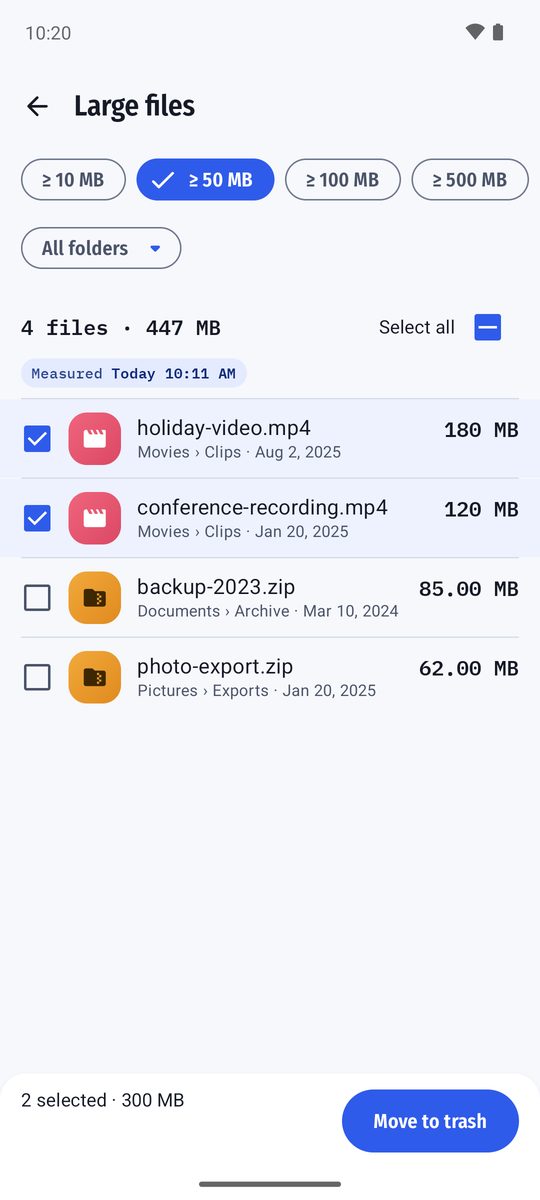
Browse large files, old files, types, or exact duplicates. Everything starts unticked, except duplicate copies after the one marked Keep.
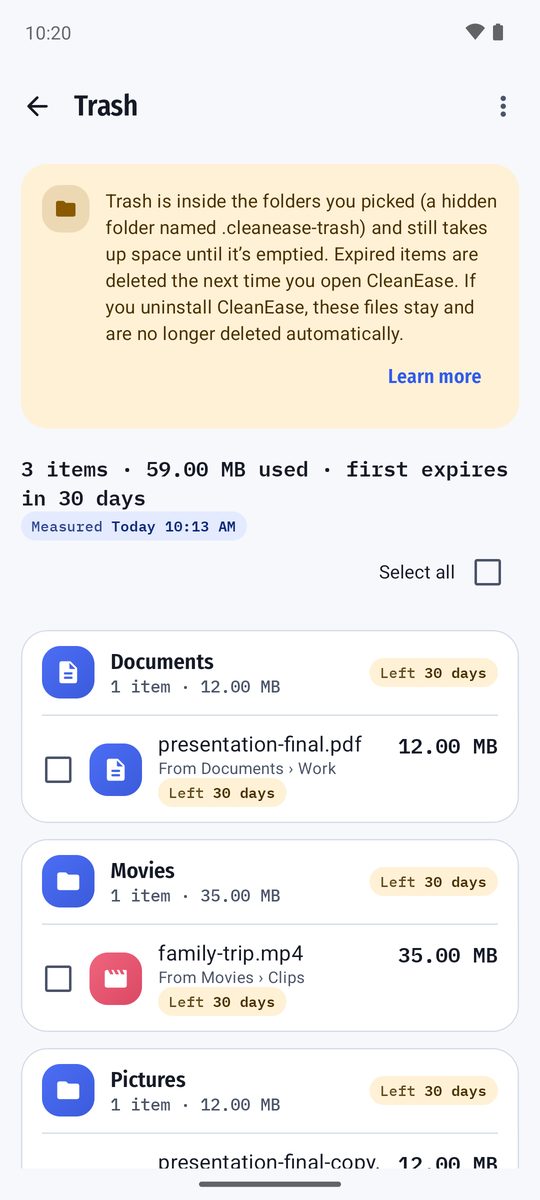
Confirm, and the files move to the folder's trash for 30 days. Changed your mind? Restore them from the trash.
CleanEase looks inside the folders you pick and shows what takes up their space.
Add folders with Android's folder picker. Each row shows its size, file count and when it was measured. Growth over the last 7 days appears once there is a week of history.
See the biggest files first. Start at 50 MB or switch to 10, 100 or 500 MB, and filter by folder. Nothing is ticked until you tick it.
Files not changed for 6 months, or 3 or 12 if you prefer. Each one says how long it has been unchanged.
Documents, archives, APK files, media and other, listed separately. APK files are listed as files; CleanEase doesn't judge whether the app is installed.
Only files with identical content are grouped, whatever their names or folders. The earliest copy in each group is marked Keep. Progress is real and you can cancel.
Deleted files move to a hidden trash inside the folder they came from. Restore them to where they were, or delete them for good whenever you choose.
The result screen shows what moved to trash. Space released is counted only when files are deleted for good, and only from what was actually removed.
Change language, see and remove the folders you added, and read how the trash works.
Real screens from the Android app.
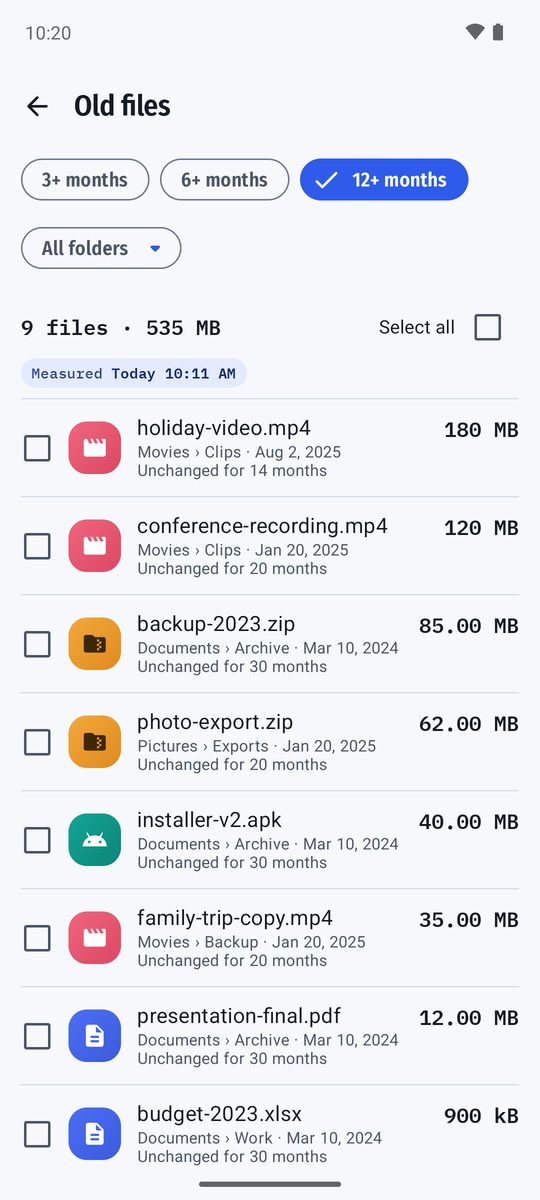
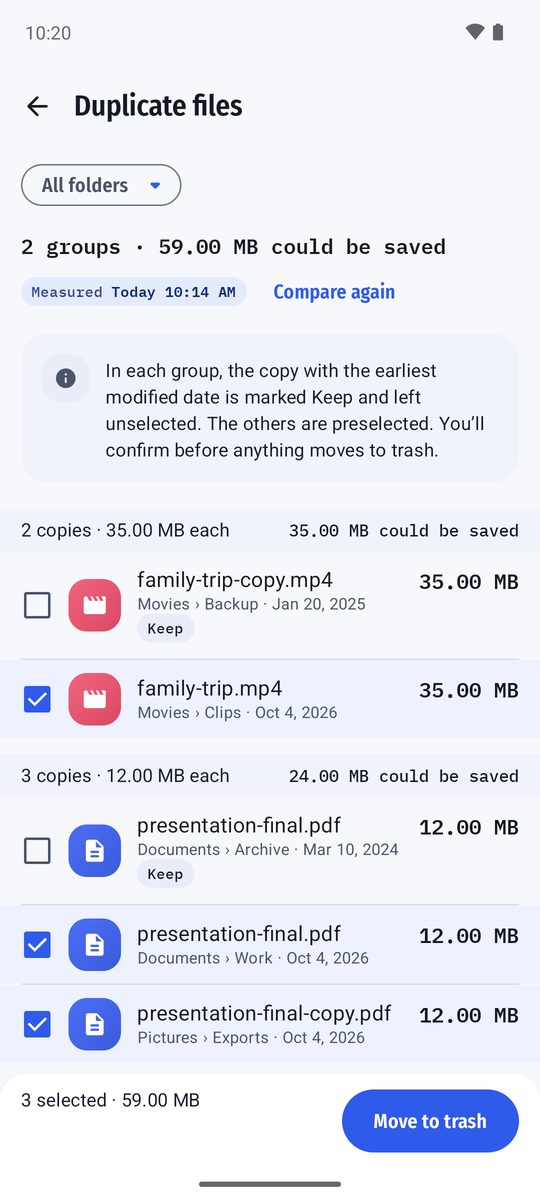
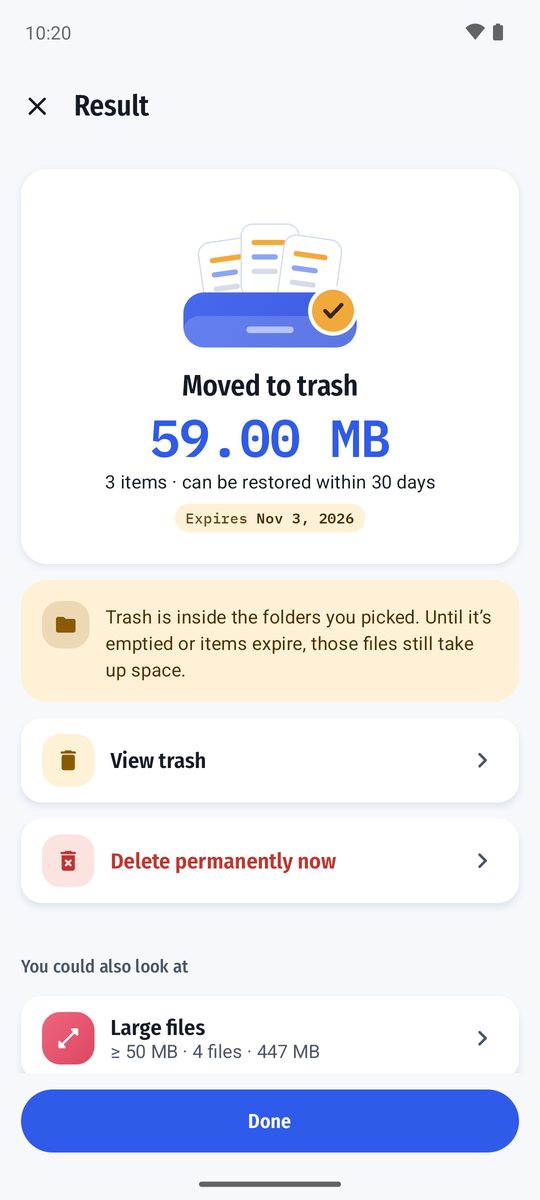
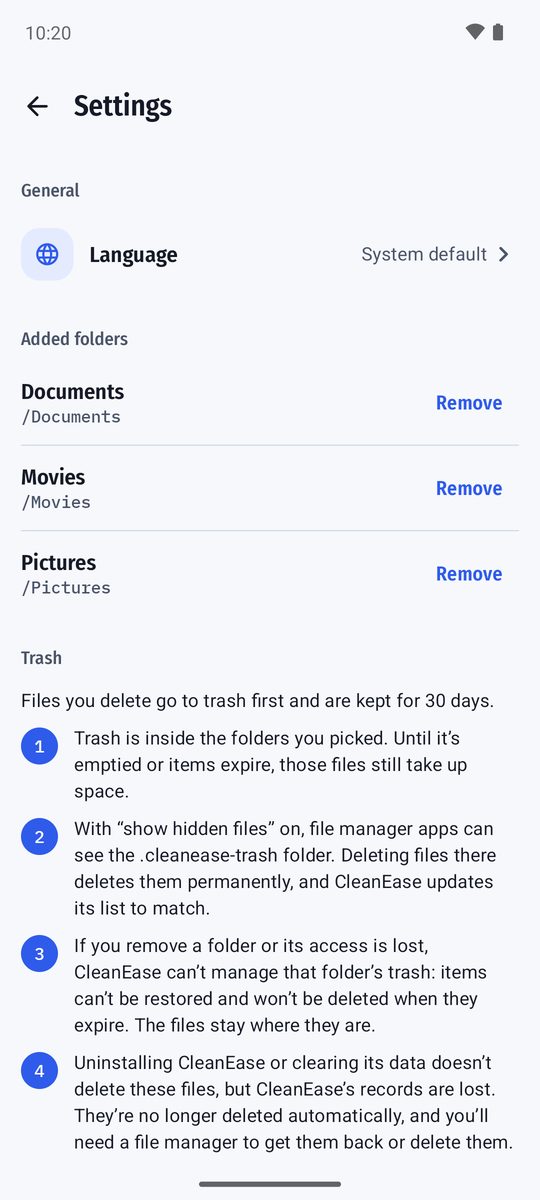
Nothing disappears the moment you tap. Moved files wait in a hidden .cleanease-trash folder inside the folder they came from.
If your Android version can't move a file to trash, CleanEase says so before deleting, and that file can't be restored.
Android doesn't let apps pick the top level of storage, Android/data, Android/obb or the Download folder itself. Phone internal storage only; no SD cards, USB drives or cloud storage.
CleanEase works inside the folders you add, and you can remove any of them in Settings. Files are scanned on your phone. Read the details in the Privacy Policy, or find answers on the Support page.